
Choose the method for your job
A download, build or AI-agent job may stop progressing while you are away. A dark display does not tell you why. Display sleep, a locked screen and system sleep are different states: a locked Mac can still be running, while seeing the same windows after waking does not establish that work continued throughout the break.
For an external-monitor desk setup, check clamshell requirements first. For a temporary task with the lid open, caffeinate needs no additional app. For closed-lid background work without an external monitor, pika provides Session controls with an installed administrator helper. Start with one method so that failures and cleanup are easier to understand.
1. Power and closed-display clamshell mode
Clamshell mode means using a MacBook with its lid closed and external display and input devices connected. With the lid open, connect power, a supported monitor, keyboard and mouse or trackpad; confirm they work before closing it. A compatible display that supplies power may replace a separate charger depending on its specifications.
Connecting only a charger does not establish this setup. Apple’s external-display troubleshooting specifies power and external input devices for a closed laptop. Supported display counts and resolutions depend on your Mac. Approve accessory connection prompts with the lid open. If the external screen is black, check cables, docks, power and model limits before assuming an app will fix it.
Check macOS settings with the lid open
For a plugged-in laptop with the lid open, look in System Settings → Battery → Options for the option preventing automatic sleep on the power adapter when the display is off. Labels and availability vary by macOS version and model; desktop Macs use different energy settings. The Apple guide below describes the setting.
This can allow the display to turn off without automatically putting the whole computer to sleep. You can keep password-on-lock enabled. It is not a universal override for lid-triggered sleep. Record your original choice if you want to restore it afterward, and remember that managed Macs may restrict these settings.
2. Keep a Mac awake temporarily with caffeinate
Open Terminal from Utilities or Spotlight. macOS includes caffeinate, which holds a sleep-prevention request while it runs. The command below prevents idle system sleep without requiring sudo or a separate installation. Leave its Terminal session running while you work in another app.
No message and a waiting cursor are normal. Without the display option, your screen can still sleep. Press Control+C in that Terminal to stop it and release its request. This is a temporary process, not a permanent power preference that survives termination or shutdown.
caffeinate -iTimed sessions, display sleep and individual commands
The first command below prevents idle sleep for 3,600 seconds (one hour). The second prevents both idle system sleep and display sleep for 1,800 seconds (30 minutes). Omit -d when the display does not need to remain lit. The -t duration is in seconds.
The third runs make and keeps its assertion for that command’s lifetime. Run it only in a project where you intend to build; it really executes make. You can substitute your own job. A launcher that exits after starting background work can finish before the actual job does. The installed manual says that -t is not used when a utility is invoked with caffeinate.
caffeinate -i -t 3600caffeinate -di -t 1800caffeinate -i makeDoes caffeinate keep a closed MacBook awake?
The -i option concerns idle system sleep and -d concerns display sleep. Closing a laptop lid is a separate condition. These options should not be presented as a replacement for clamshell requirements or a guarantee of closed-lid operation without a monitor.
The -s assertion is valid only on AC power; it is not evidence of a universal lid-sleep override. The -u option declares user activity and can wake the display, which may conflict with wanting a dark screen. Choose options for their documented purpose rather than copying a long flag combination blindly.
3. Install pika and use Session and Monitor
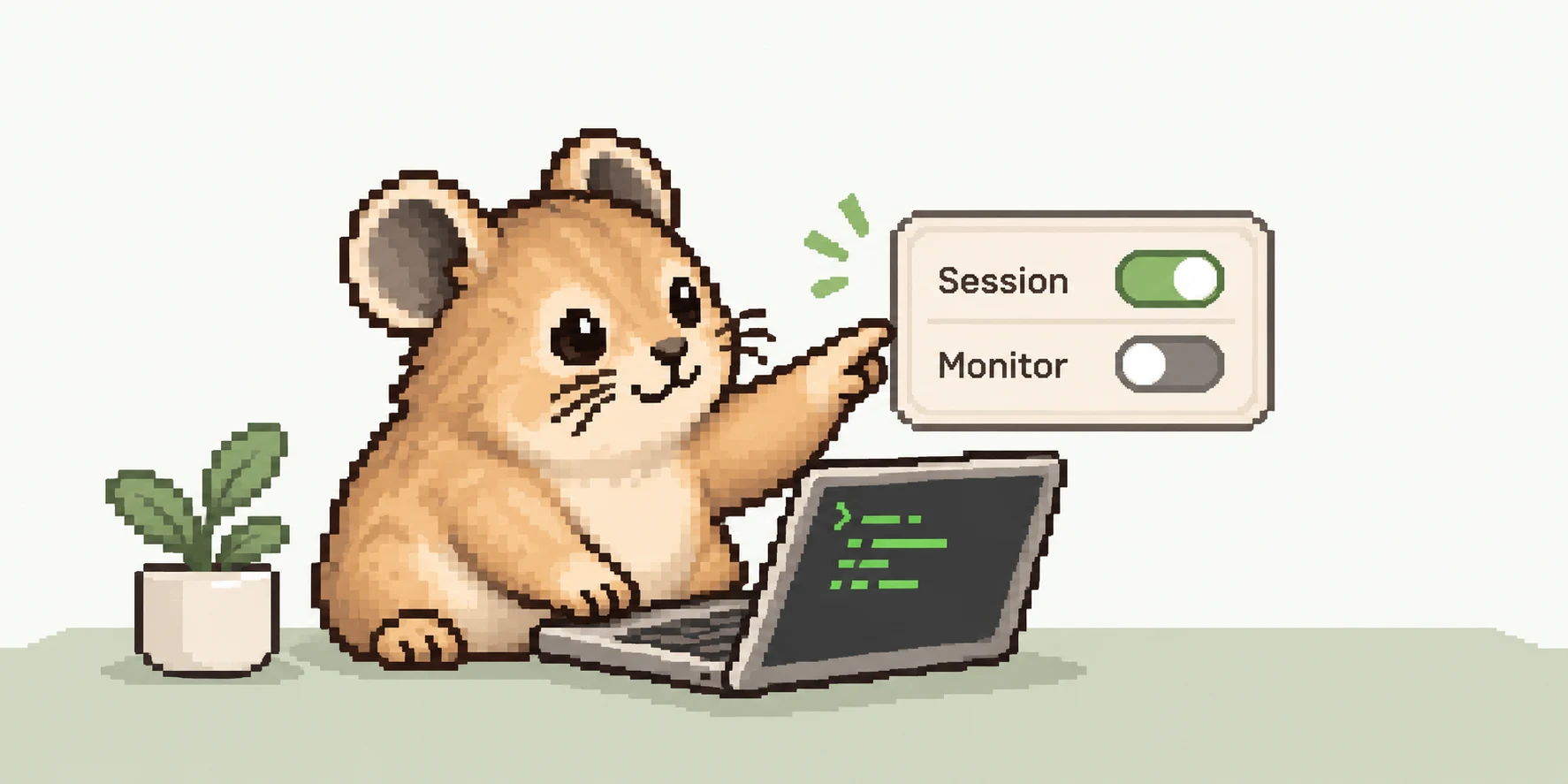
pika is a menu-bar utility for macOS 13 or later, supporting Apple Silicon and Intel. Download the full PKG from the official site. The installer includes the app and administrator helper needed for closed-lid functionality. Complete macOS authorization and any required security approval yourself using the installation guide; do not disable system-wide security protections.
Open /Applications/pika.app and confirm helper connectivity. Turn Session ON, choose Monitor OFF if you do not need display wakefulness, then close the lid. Sleep prevention is prepared before closure; the display policy engages after lid closure. Changing Monitor while the lid is open saves a preference rather than immediately blanking the screen.
Reopening the lid returns display control to waiting. Session OFF restores pika’s managed sleep setting and shows Monitor OFF without immediately blanking the screen. Closing the window leaves the menu-bar app running. Use Session OFF or Quit to finish. A helper error means the operation has not succeeded and must be resolved first.
Verify your job and end the session
Test a short download or build, note its starting time, leave the Mac in your intended state, and inspect timestamps and progress afterward. This is a suggested verification procedure, not a claim that every Mac model has been tested. Check the job itself, not just whether the screen lights up again.
The read-only pmset command below shows current power assertions, including requests from other apps. It does not alone prove closed-lid continuity or network availability. Read the installed caffeinate manual for your Mac’s options. Preparing this article involved reading the manual, not changing the machine’s power settings.
pmset -g assertionsman caffeinateQuestions about locking, networks and heat
A lock screen does not by itself mean that the system slept. Keep authentication enabled and inspect your job log. Sleep prevention cannot fix Wi-Fi, VPN or API outages, service limits, permission prompts or app crashes. pika neither drives AI conversations nor reconnects a failed network.
Keep a running Mac on a firm, ventilated surface, not in a bag. A closed lid does not remove heat production. Battery and thermal protection may end a pika session and cannot guarantee protection against all overheating or depletion. For long jobs, plan power, ventilation, saved progress and recovery as well as sleep prevention.
Sources and scope
This comparison is written by the maker of no-sleep-pika and includes our own app. Apple documentation supports external-display and settings guidance; command options were checked against the installed caffeinate(8) manual. pika behavior refers to the public 1.0.13 documentation and implementation. This is not an endorsement by Apple or any AI provider.
Use clamshell mode for an external-screen workstation, caffeinate for temporary lid-open tasks, or pika with a working helper for closed-lid background work. A screen staying on and a job continuing are different goals. Verify your environment and keep the session active only as long as needed.
- Apple: If your external display is dark or low resolution
- Apple: Set sleep and wake settings for your Mac
- Apple: Allow USB and other accessories
man caffeinate· macOS System Manager’s Manual